Install Tokeny and complete your first task
Choose an installer, configure a model and create a workspace. Complete a small task with an outcome you can verify.
By Tokeny · Maintained by the Tokeny team · · Applies to Tokeny 1.7; check your installed tools
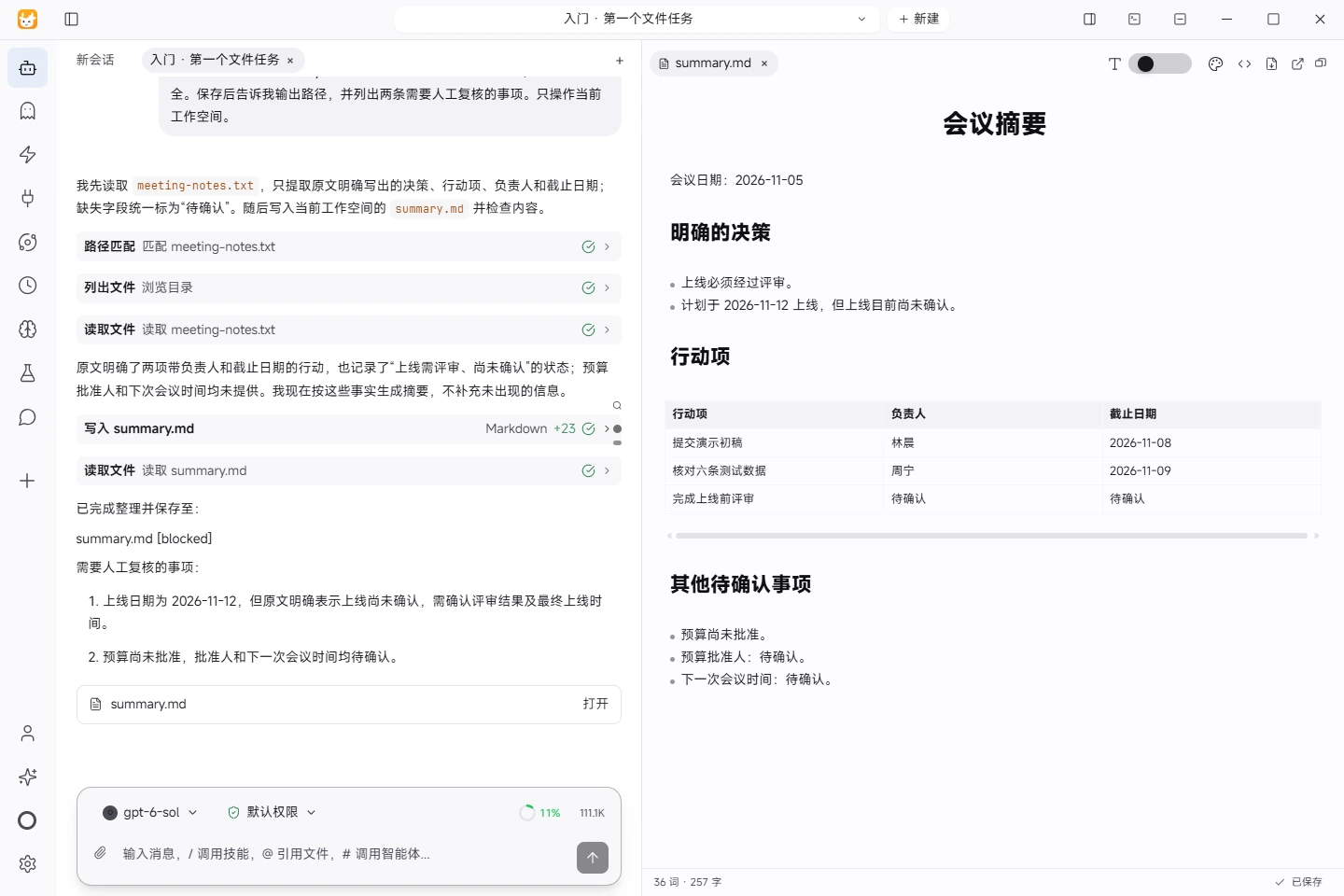
Actual task screenshot. From reading the input to saving a summary: the right pane shows the actual summary.md, with owners, dates and open questions to review. View full size ↗
Tested on November 5, 2026 · Windows · Tokeny 1.7.6 · gpt-6-sol online model · Synthetic input. Screenshots and output files use the Chinese interface and content.
Start with a task whose result you can inspect
Tokeny combines models, workspace files and tools in a desktop assistant. Start with synthetic input before using business documents. This guide applies to the Tokeny 1.7 series; available tools depend on your platform, model and installed skills.
1. Install and check the version
Choose Windows x64, macOS Apple Silicon / Intel or Linux from the official download area. After installation, check the version in the application's settings or About screen. Beta history is a separate release channel; a beta feature is not a promise about every stable version.
Follow the sign-in and model setup prompts. Membership and built-in channels depend on account eligibility. Your own API key needs an active provider account and sufficient quota. Send “Reply only: connection successful” to check connectivity. For a 401 response, check credentials and the selected channel; for a 429 response, check rate limits and quota.
2. Create a separate workspace
Create an empty folder such as tokeny-first-task and select it as the current workspace. Download the meeting notes sample into that folder. It contains synthetic teaching data, not customer information.
Specify the input file and output path. Avoid scanning an entire drive for a first task. Try this prompt:
Read meeting-notes.txt in the current workspace. Write summary.md with confirmed decisions, action items, owners and due dates. Mark missing information as “to confirm”; do not invent it. Save the file, report its path, and list two points that need human review. Write the summary in English.
3. Inspect execution and the saved file
Check that the assistant reads the intended file. When a tool or write action needs confirmation, review the operation and path. Open summary.md when the task completes. The November 12 launch target must still require review, and the budget must remain unapproved.
Success means the file opens, its facts match the source, and uncertainties remain explicit. A completion message in the chat is not evidence that a file exists. If it is missing, ask for the actual saved path and inspect the directory again.
The screenshot comes from a real task in Tokeny 1.7.6 on Windows using the online gpt-6-sol model. Download the actual generated summary in Chinese to compare it with the source. The English prompt above is an adaptation.
Troubleshooting
| Symptom | What to check |
|---|---|
| Advice appears, but no file | Explicitly request a workspace file and check whether the selected model supports tool calls. |
| Sample cannot be found | Check the workspace, filename and extension. A web link is not a downloaded local file. |
| A command fails | Read its error and verify the runtime before approving retries. |
| Facts are inaccurate | Compare each statement with the input. Keep unknown owners or dates marked as unconfirmed. |
Continue with meeting notes to Word or CSV to Excel. Before using real documents, review models and data flows.
Found an issue? Include the page, app version and steps: tokeny@techxh.cn
Start with a practical guide
Install Tokeny and complete your first task
Choose an installer, configure a model and create a workspace. Complete a small task with an outcome you can verify.
Models and data flows
Compare your own API key, Tokeny channels and local models. Understand which data leaves your computer and how to check your setup.
Install, verify and troubleshoot MCP servers
Connect MCP servers with verified MarkItDown and Serena commands. Review versions, tool discovery and the limits of six server checks.
Turn CSV orders into an Excel report
Use synthetic orders to calculate revenue, build Excel formulas and a category chart, and reconcile the result against known totals.
Turn meeting notes into a Word document
Extract decisions, owners, due dates and open questions from synthetic meeting notes, then produce a Word document for review.
Skills vs MCP: differences and combinations
Skills describe workflows; MCP exposes callable tools. Learn how to combine them to convert source material and prepare a report.